No setup is changed by reading this guide. Come back from any dashboard or the classroom navigation.
Practice, explain, save, then submit. Original illustrated example, not a screenshot; follow the written steps below.See the practice and feedback cycle
Teacher assignsA resource and instructions for the class, a group, or selected students.
Student respondsSave a draft, then submit the response.
Teacher returnsFeedback stays private until the teacher returns the work.
One connected loop. Opening a resource alone does not complete the assignment.
Student walkthrough
Follow the steps in order, or jump to what you need.
Sign in with your own code and PIN
Use the class code and private PIN your teacher gave you.
You do not need an email address for Student Login. If another person is signed in, use the sign-out handoff first. Do not share your PIN or use someone else's account.
Open My work and read the teacher's instructions before starting.
Look at the task, any review criteria, and the due date. The practice resource opens in another tab. Come back to the assignment page to write your response; opening the resource alone does not finish the task.
Your draft is not saved automatically. A saved draft stays available when you return. You can keep editing it until you submit. If a save reports a conflict, keep a copy of your writing and follow the page's instructions instead of repeatedly submitting.
Check your response, then select Submit to my teacher.
Submitting makes your response read-only. The status changes to Awaiting teacher review. You will not get an instant writing score. If you submitted the wrong response, ask your teacher; this release cannot reopen submitted work.
Your teacher must return the review before you can see it. A blank score does not mean zero. Use the explanation to choose what to practice next, and ask your teacher if something is unclear.
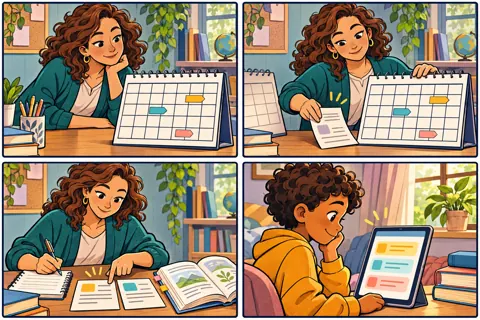
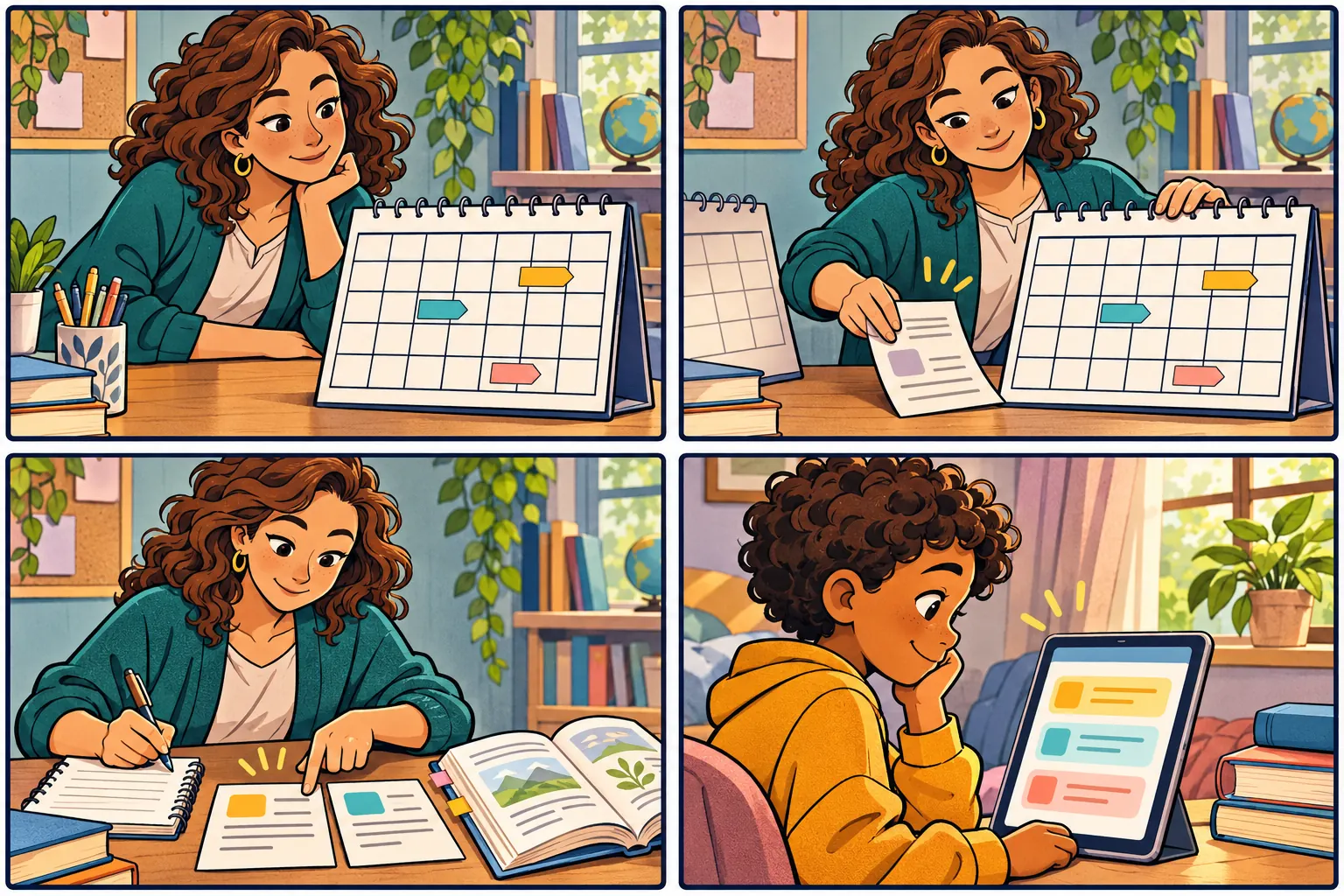
Use due dates to plan, and log out before sharing the device.
Your calendar shows your own assigned work, not classmates' work. Dates do not automatically deduct points. On a shared device, use Log Out on your student dashboard when you finish.
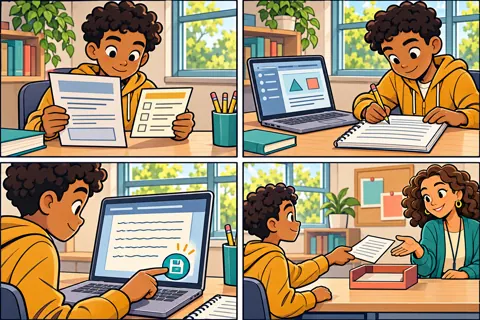
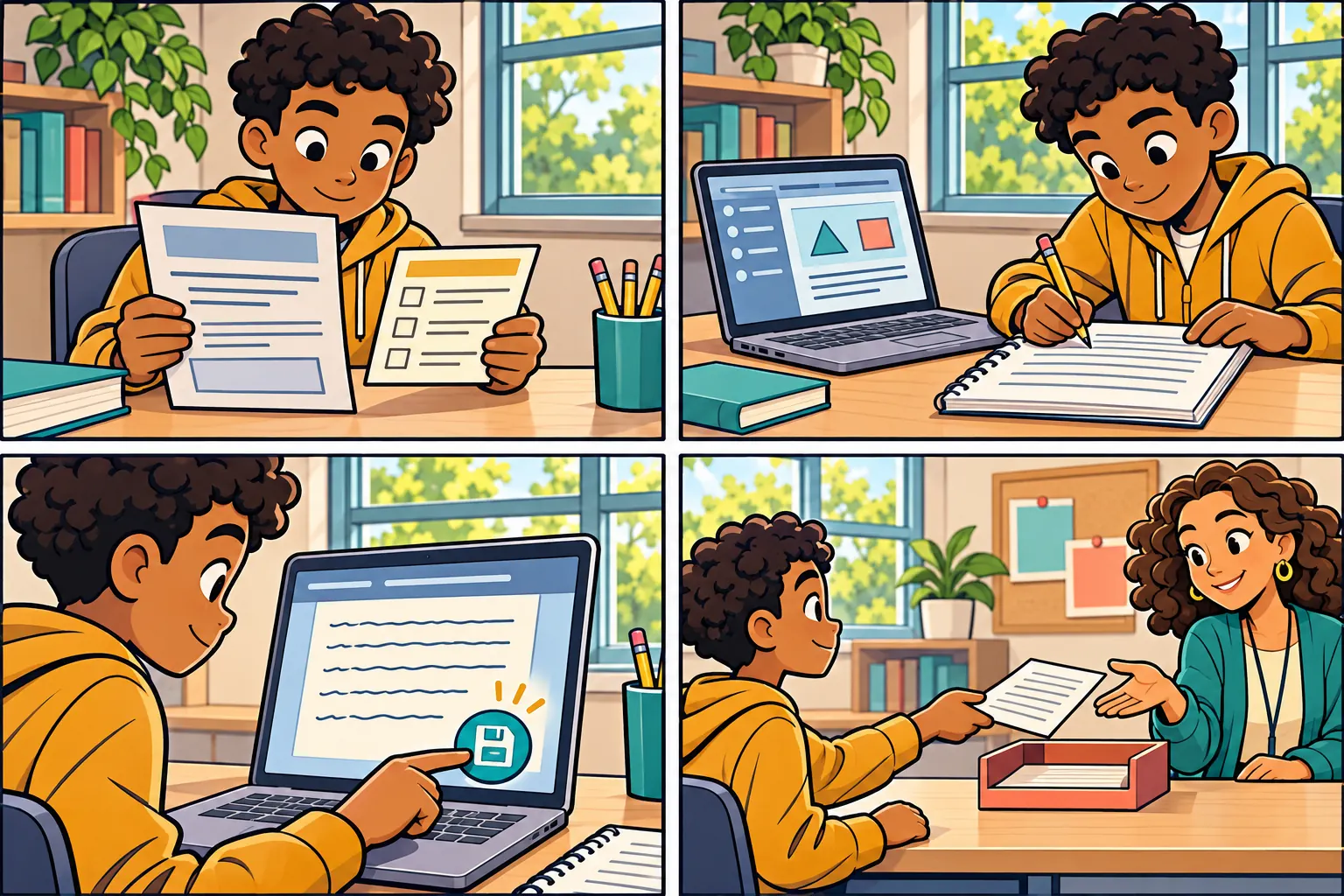
Open a task to see the four illustrated steps. The text explains the real behavior; the drawings do not show actual student records or every screen control.
Practice, explain, save, then submitYour response comes back here, even when practice opens in another tab.Open or close the illustrated steps
Illustrated example, not a screenshot. Read the actual steps alongside it.
Read your task
Check your teacher's instructions and how the work will be reviewed.
Try the practice
The resource opens in another tab. Come back to this assignment to explain your thinking.
Select Save draft
Writing is not saved automatically. Save before leaving, and keep editing your saved draft until you are ready.
Submit when ready
Submitting locks your response for teacher review. Feedback appears only after your teacher returns the work.
These are real example screens using made-up students, not private classroom records. Your class names and assignments will be different. Open an image to inspect it at full size.
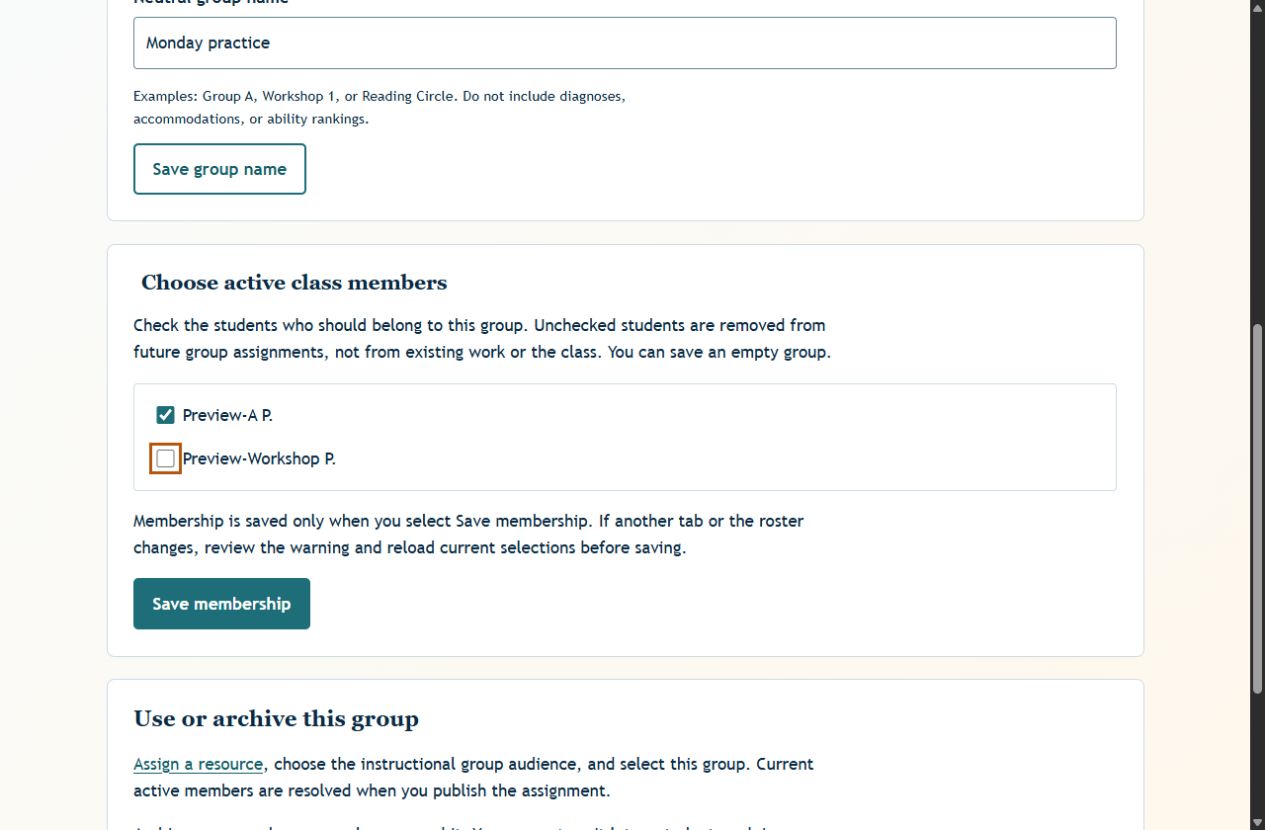
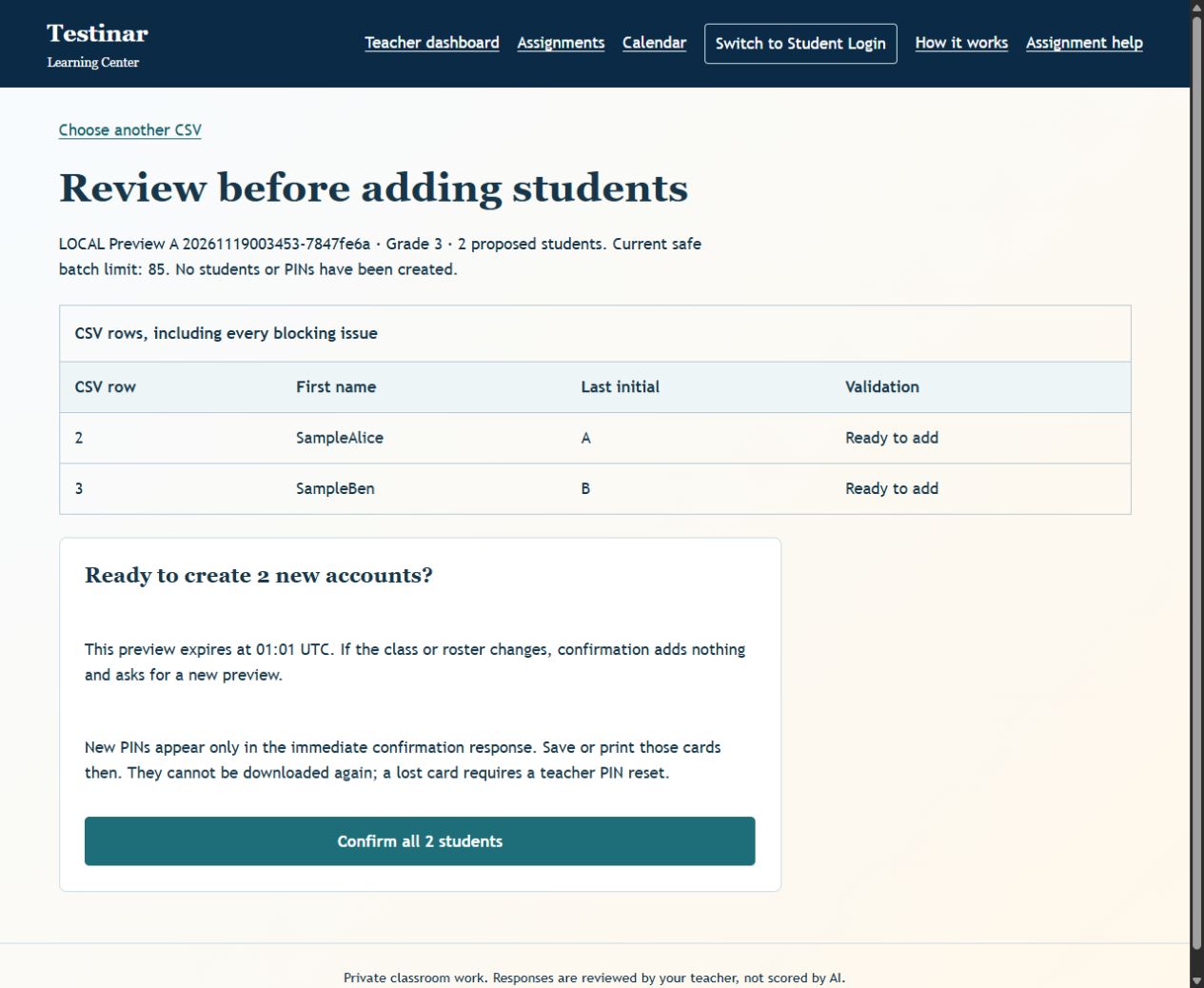
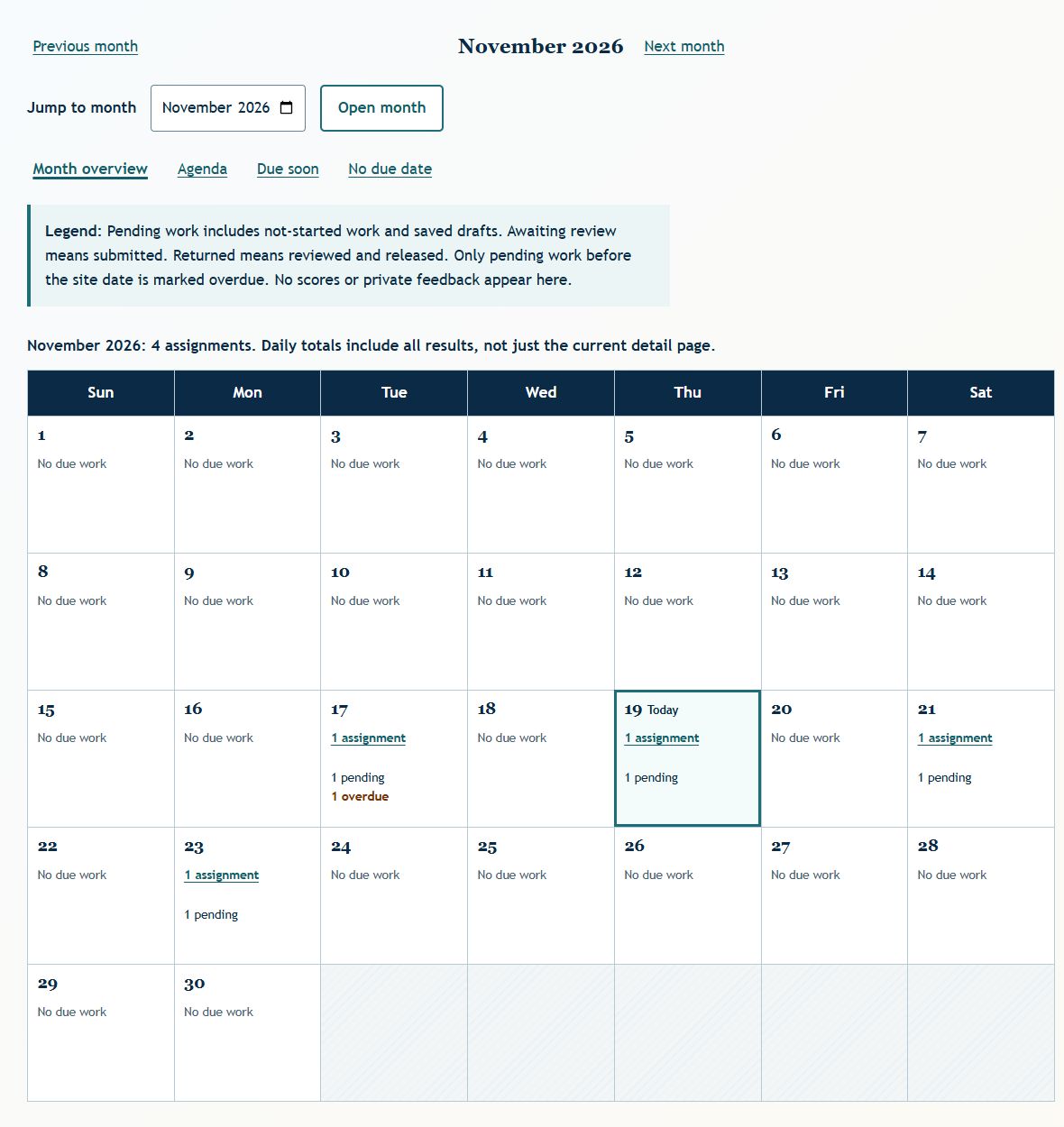
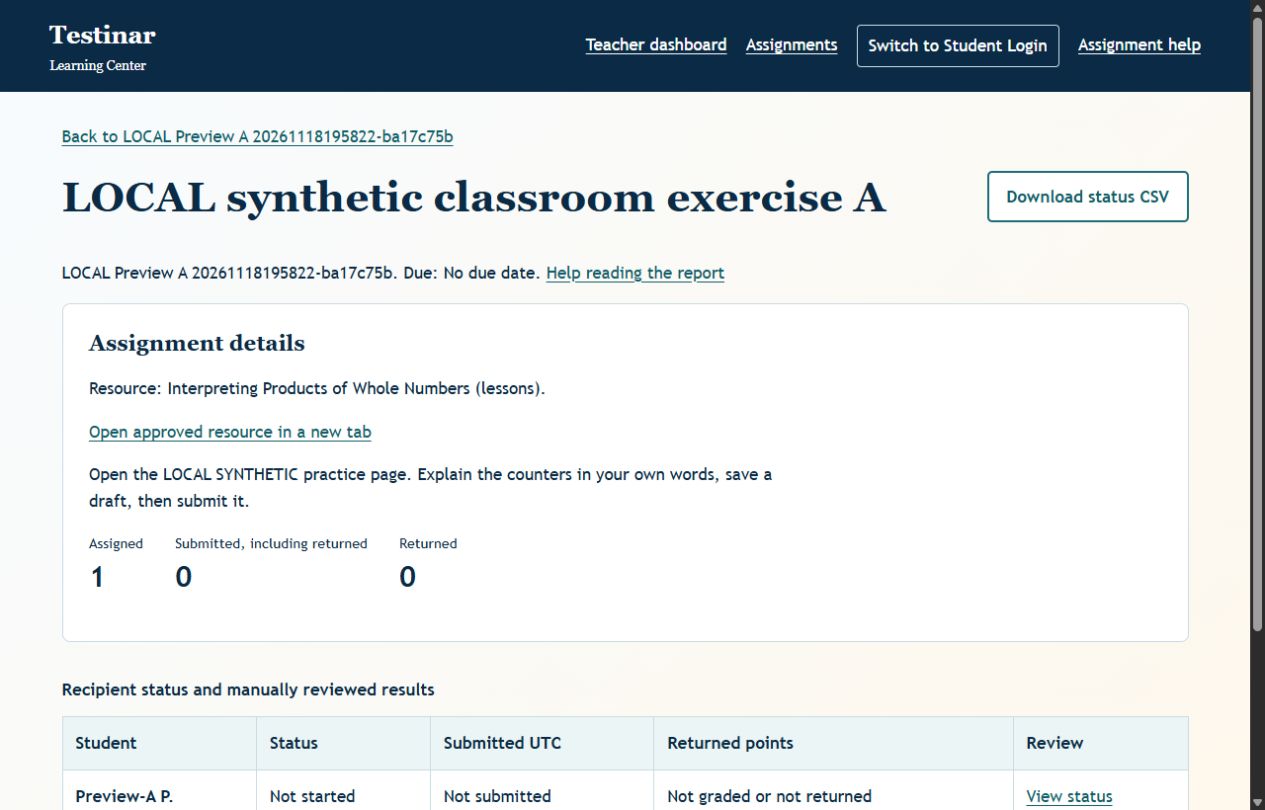
Arrange instructional groupsChoose active members privately. Existing assignment recipients remain fixed when a group changes.Review a roster before adding itUploading only validates. Check every row before confirming and saving the one-time login cards.Plan the next practiceUse the month view or phone-friendly agenda. Due dates are reminders, not automatic grade penalties.The teacher's reportSee what was assigned, submitted, and returned. A resource click is not counted as completed work.The student's returned workThe response and feedback stay together. Points appear only when the teacher returns them.
Common questions
Does opening a lesson or public quiz give a classroom score?
No. Public practice is a resource link, not a tracked classroom attempt. The student must return to the assignment to save and submit a written response. The teacher reviews that response manually.
Does the system save every keystroke?
No. Students must select Save draft. A warning helps protect unsaved changes, but it is not a substitute for saving. Teachers should search for a resource before entering assignment details because that search reloads the form.
What if I choose the wrong CSV file?
Uploading shows a preview first. No students are created until the teacher confirms. Check the class, names, duplicates, skipped rows, and errors before confirming. The import history explains when an import can be undone; undo does not delete previous work.
What happens when a group or class roster changes?
The recipients of an existing assignment stay fixed. A later group edit or new enrollment does not silently add or remove recipients. Removing a student's class access prevents that student from opening the old class's work; the history is preserved.
How do due dates and late work behave?
The calendar uses date-only due dates and labels its reference date. A past due date is a planning reminder, not an automatic penalty, timer, or grade. Your teacher decides the classroom policy.
What if a PIN is lost or a session ends?
Ask the teacher for a reset and sign in with the current class code. PIN lists are not recoverable from the roster. Editing access, archiving a class, or changing its code may end existing sessions. Parent mode cannot recover a teacher-issued PIN.
Can a submitted response be changed?
Not in this release. Submitting locks the response. Returned reviews are also read-only. Ask the teacher what to do next; reopening and resubmission require a later revision-history feature.
Is this a full school gradebook or parent messaging system?
Not yet. Classroom assignments, feedback, groups, roster imports, and planning are the current tools. School administration, co-teaching, weighted gradebooks, attachments, guardian invitations, and classroom messaging are separate planned stages. No automatic writing or mastery score is claimed.